
SQL Server Setup on Mac with Docker: A Step-by-Step Guide
A straightforward guide to setting up SQL Server on Mac using Docker. From installation to running a SQL Server container, this article provides easy-to-follow steps tailored for developers and database enthusiasts on macOS
Setting up SQL Server on a Mac using Docker is a practical solution for developers who need to run SQL Server databases on macOS, where SQL Server is not natively supported. Docker provides a way to run SQL Server in a containerized environment, making it compatible with macOS. Here's a detailed guide on how to set up SQL Server on a Mac using Docker.
Prerequisites
Docker Desktop for Mac: Install Docker Desktop for Mac from the Docker website. Docker uses virtualization to run SQL Server, so your Mac must support virtualization.
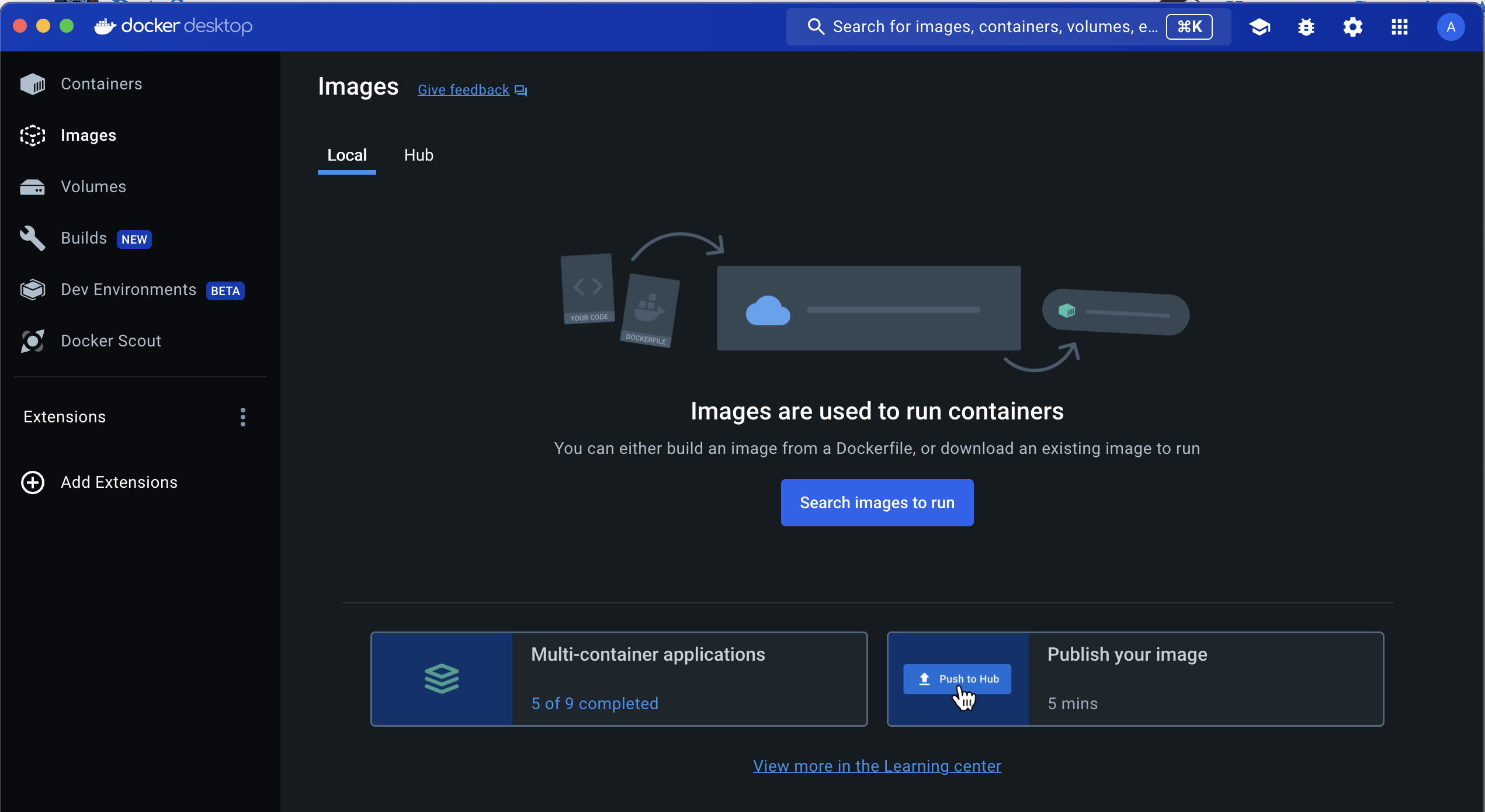
A detailed blog on How to Install Docker and Introduction to Docker
Pull the SQL Server Docker Image
- Open the Terminal on your Mac.
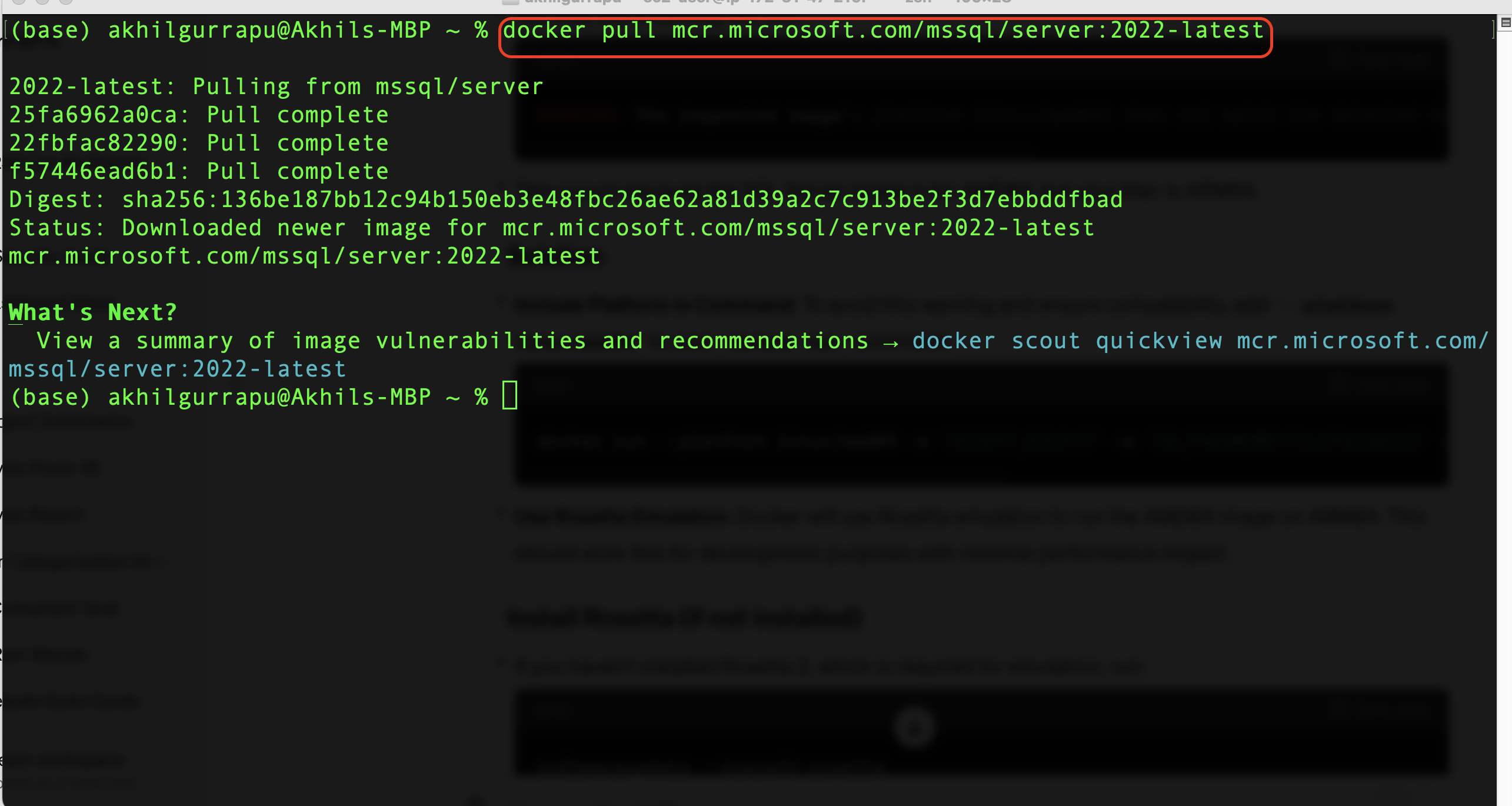
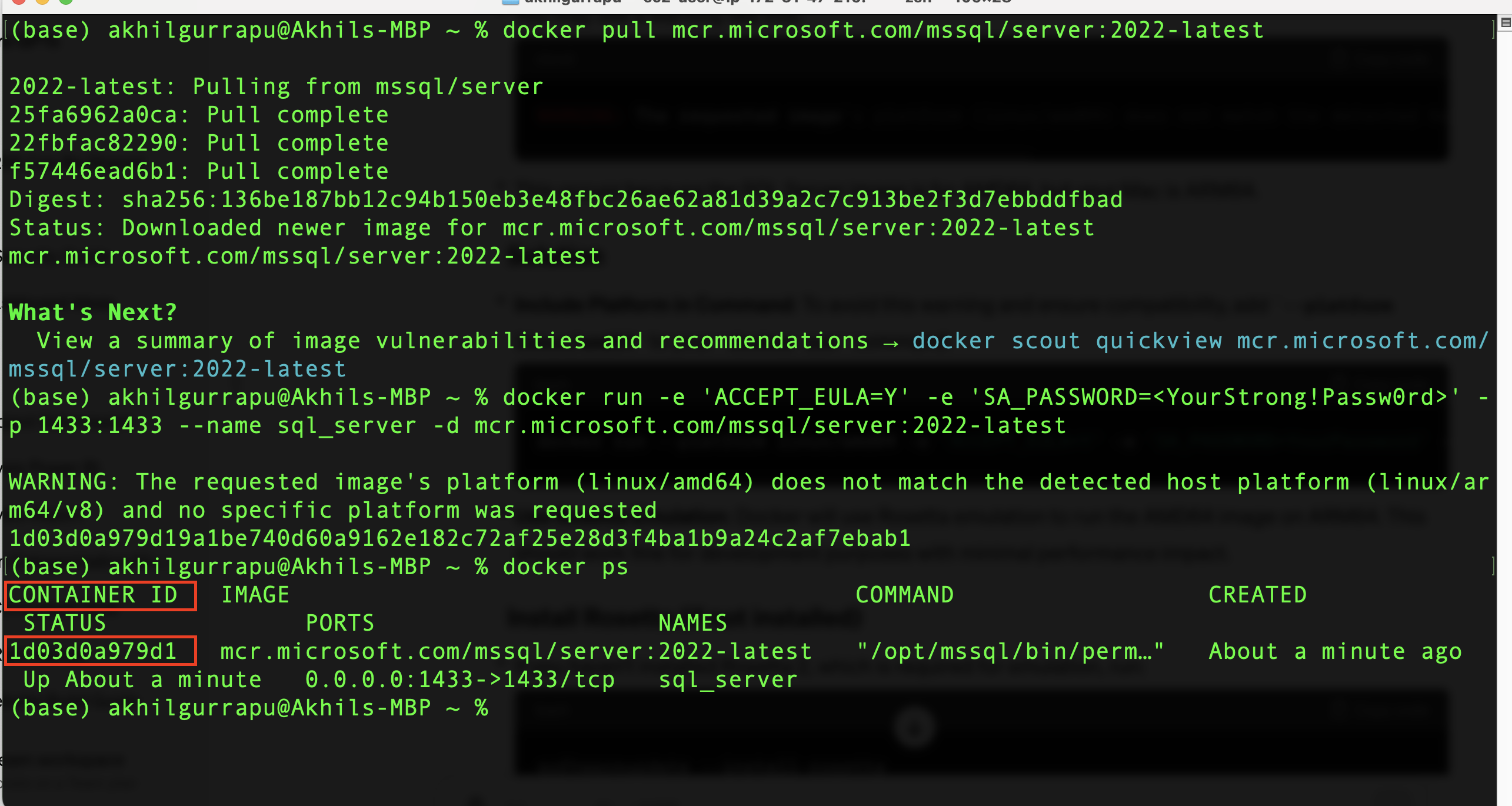
Pull the latest SQL Server Docker image by running the command:
docker pull mcr.microsoft.com/mssql/server:2022-latestThis command downloads the latest SQL Server image from Microsoft’s container registry.
Run the SQL Server container
Run the SQL Server container using the following command:
docker run -e 'ACCEPT_EULA=Y' -e 'SA_PASSWORD=<YourStrong!Passw0rd>' -p 1433:1433 --name sql_server -d mcr.microsoft.com/mssql/server:2022-latest-
Replace <YourStrong!Passw0rd> with a strong password. The SA_PASSWORD environment variable sets the database system administrator password.
-
The -p 1433:1433 option maps the default SQL Server port to the same port on your Mac, allowing you to connect to the database server locally.
-
--name sql_server names your container for easier reference.
The -d option runs the container in detached mode, meaning it runs in the background.
To run an AMD64 architecture-based Docker image (like SQL Server) on an ARM64 architecture system (like newer Macs with Apple Silicon), you might encounter a warning about the architecture mismatch. Here's a concise guide to address this:
Warning Message You may see a warning as shown in image and below code.
WARNING: The requested image's platform (linux/amd64) does not match the detected host platform (linux/arm64/v8) and no specific platform was requested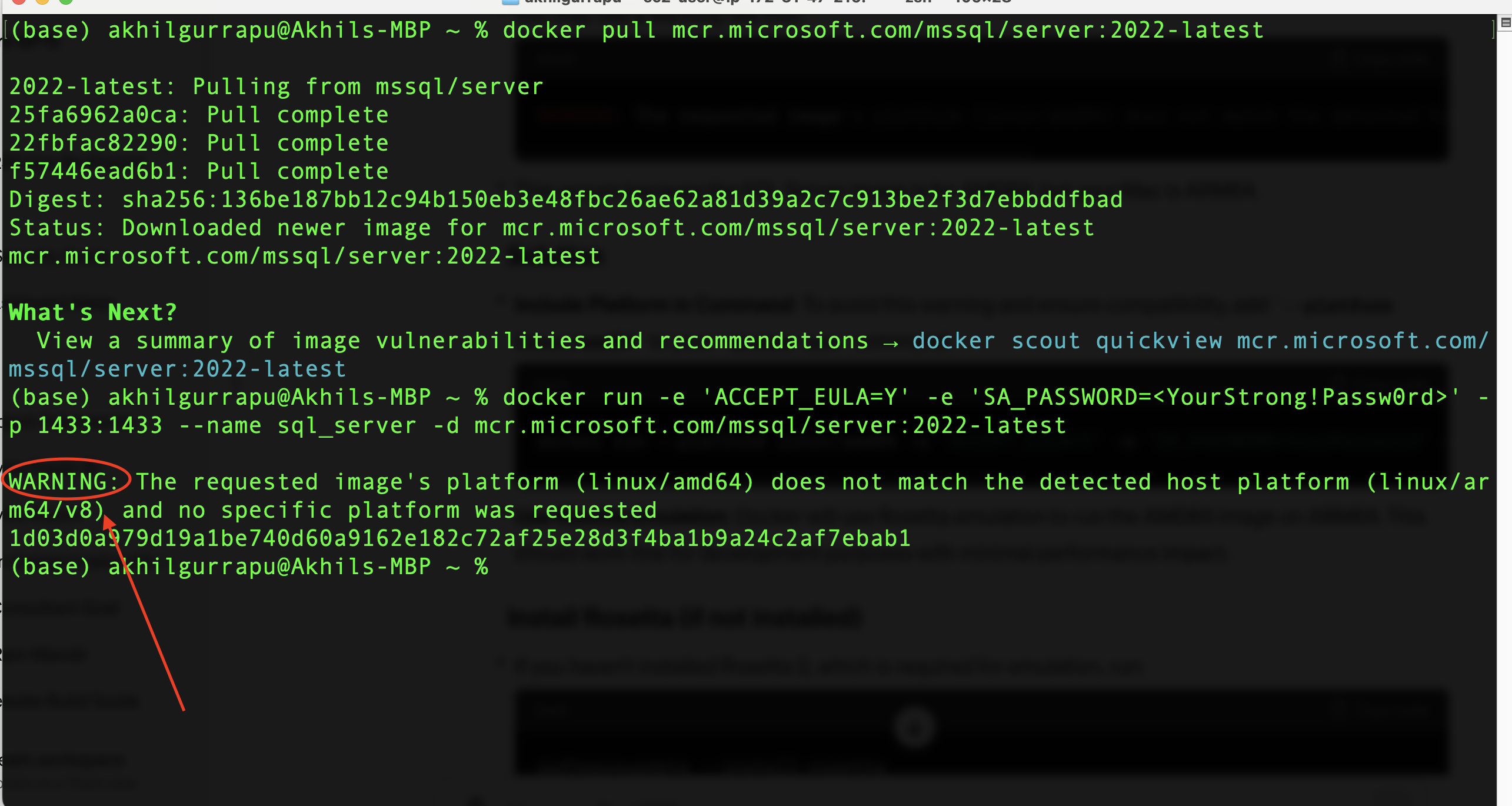
This occurs because the SQL Server image is for AMD64, but your Mac is ARM64.
Solution
Include Platform in Command: To avoid this warning and ensure compatibility, add --platform linux/amd64 to your docker run command:
docker run --platform linux/amd64 -e 'ACCEPT_EULA=Y' -e 'SA_PASSWORD=YourPassword' -p 1433:1433 --name sql_server -d mcr.microsoft.com/mssql/server:2022-latestUse Rosetta Emulation: Docker will use Rosetta emulation to run the AMD64 image on ARM64. This should work fine for development purposes with minimal performance impact.
Install Rosetta (if not installed)
If you haven't installed Rosetta 2, which is required for emulation, run:
softwareupdate --install-rosettaRosetta 2 enables your ARM64 Mac to run applications built for AMD64.
Verify the Container is Running
Check that the SQL Server container is running by executing:
docker ps- You should see your SQL Server container listed.
Connect to SQL Server:
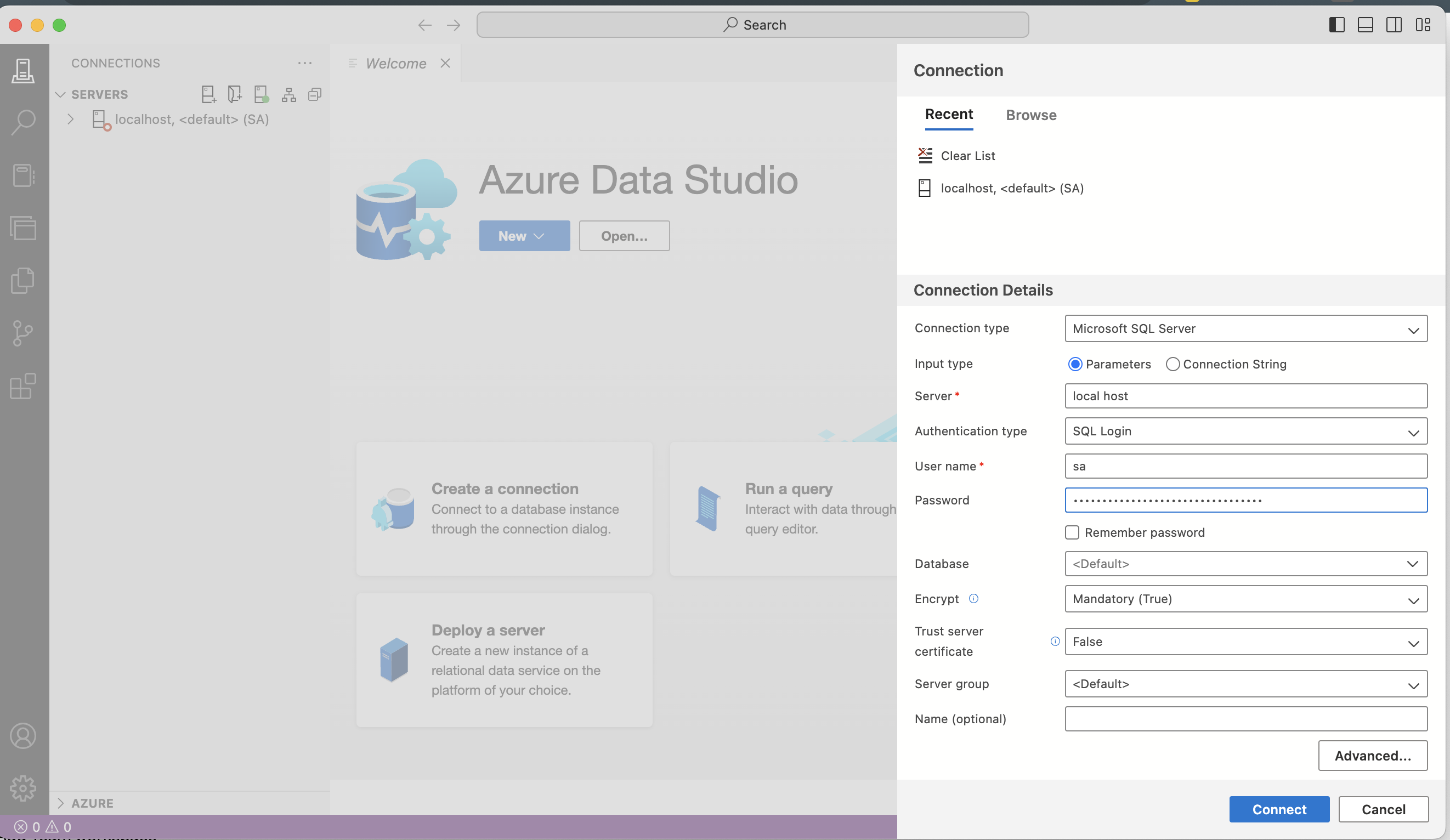
Using Azure Data Studio:
-
Open Azure Data Studio: Launch the application from your Applications folder.
-
Add a New Connection: Click on the “New Connection” icon.
-
Connection Details:
- Server: Enter localhost if SQL Server is running locally on the default port.
- Authentication Type: Choose "SQL Login".
- User Name: Enter sa.
- Password: Enter the password you specified when you ran the SQL Server Docker container (YourStrong!Passw0rd).
-
Connect: Click on the “Connect” button.
Using a SQL Server Management Studio (SSMS):
If you want to use SQL Server Management Studio (SSMS) on a Mac, you'll need to set up a Windows virtual machine (VM) because SSMS is not natively supported on macOS. Here's how to do it:
Set Up a Windows Virtual Machine on Mac:
- Choose a Virtualization Software: Pick a virtualization tool like Parallels Desktop, VMware Fusion, or VirtualBox. Each has its pros and cons, so choose based on your preference and requirements.
Install SQL Server Management Studio (SSMS) in the VM:
-
Download SSMS: Once Windows is set up, download SSMS from the official Microsoft website.
-
Install SSMS: Run the installer and follow the prompts to install SSMS on the Windows VM.
Connect SSMS to SQL Server on Docker
-
Find Mac's IP Address: On your Mac, find your IP address. You can do this by going to System Preferences > Network.
-
Configure SQL Server Container: Ensure your SQL Server Docker container allows connections from other hosts. You might need to adjust the docker run command to bind SQL Server to a public IP or 0.0.0.0.
-
Open SSMS on the VM: Launch SSMS in your Windows VM.
-
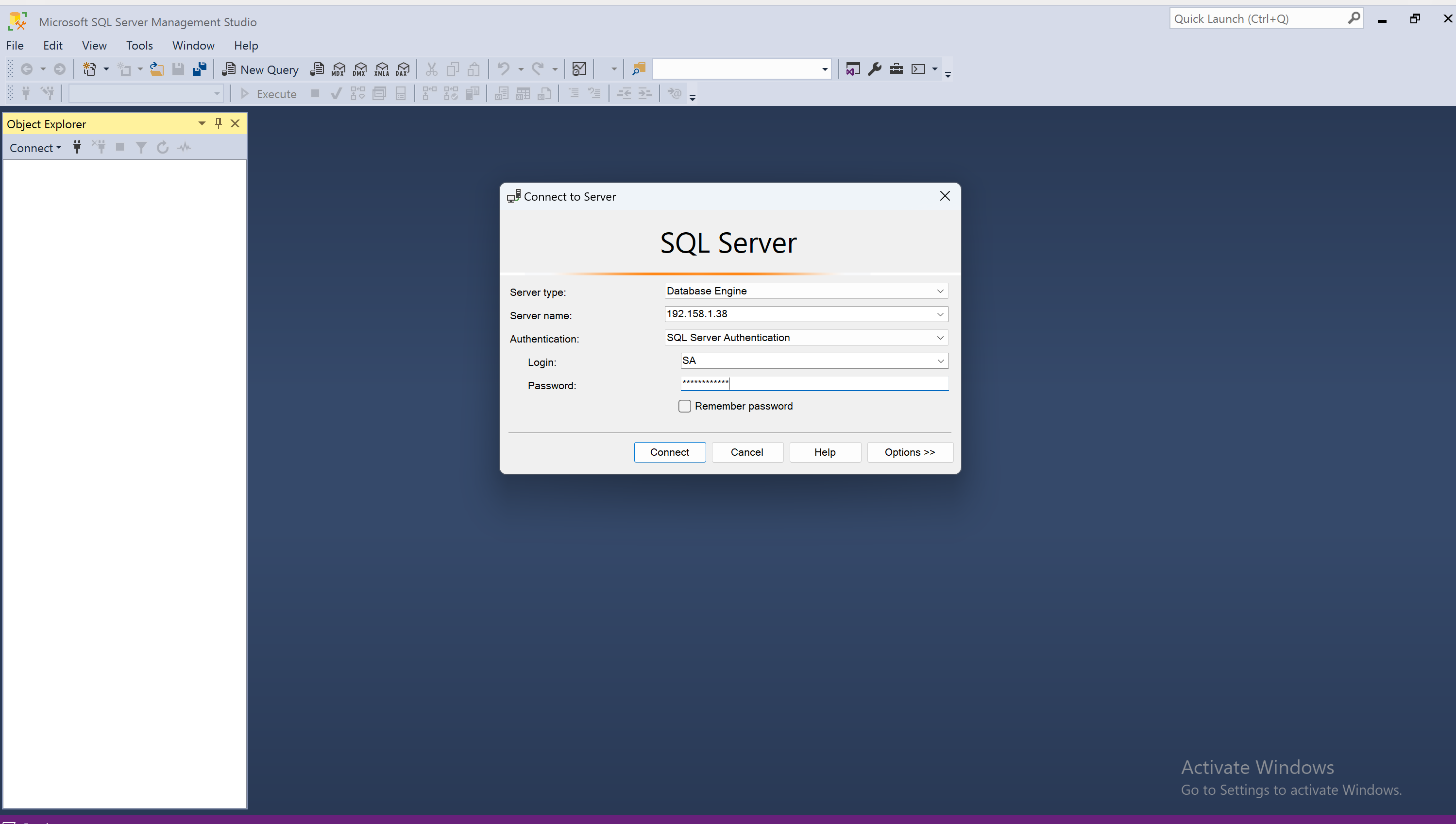
Connect to SQL Server:
- Server Name: Enter your Mac's IP address and the SQL Server port, e.g., 192.168.x.x.
- Authentication: Use "SQL Server Authentication".
- Login: The default is sa.
- Password: The password you set for the SQL Server Docker container.
- Test Connection: Try connecting to the SQL Server. If it doesn't connect, check the firewall settings on both the Mac and the Windows VM.
Manage the SQL Server Container
- Start the container: docker start sql_server
- Stop the container: docker stop sql_server
- Remove the container: docker rm sql_server
On this page
Keep exploring
matched by tag + title overlap
Read next
Mastering Docker
This article introduces Docker for beginners, focusing on data engineering applications. It covers Docker's essentials and demonstrates setting up a PostgreSQL database and Python environment, ideal for those with basic Docker and…
#docker#data-analyst#data-engineeringInstalling Oracle Database on macOS
Discover how to easily set up Oracle Database on your Mac using Docker containers. This step-by-step guide walks you through the installation process, from Docker setup to database configuration, and shows you how to connect using VS Code.
#data-engineeringSQL Interview Quick Guide: From Basics to Interview Ready
Whether you're a beginner or looking to polish your skills, this blog post breaks down essential SQL concepts with clear explanations and practical examples of potential SQL interview questions. Prepare to your next SQL interview!
#data-analyst#data-engineeringBuilding an MCP Server for Snowflake Cortex Agents
Step-by-step guide to building a Model Connectivity Protocol (MCP) server for Cortex Agents with Snowflake, enabling AI applications like Cursor to connect to your Snowflake data and documentation.
#data-engineering